

- Posts: 32
- Thank you received: 0
Treek. Brief illustrated description of all features
3 months 2 weeks ago - 3 months 2 weeks ago #25
by admin
Treek. Brief illustrated description of all features was created by admin
This topic provides a ‘static’ overview of the features for working with post trees, as presented in the slideshow.
The captions for the images and videos have been copied here from the slideshow, largely unchanged.
This thread has been created to serve as an alternative to the slideshow for smartphones on which it does not work properly.
The site offers three ways to learn about Treek, all providing the same amount of information: a slideshow , this forum, and an article .
The choice of how to explore Treek depends on the reader's preference.
The site administrator considers reading the article to be the most relaxed approach.
List of posts. (Created using a tree export – see the end of the list)
Treek. Brief illustrated description of all features
Opening the topic posts tree - two ways
A simple tree
Settings and grids
Dragging the Settings window
Tooltips and post text
Start of post line
Date and time
Post index
Beginning of the post. "Text" excerpt
Beginning of the post. "Screenshot" excerpt
Reaction time when settings change
View mode
Comfort symbols. Navigation
Comfort symbols. Highlighting
Saving and restoring settings
Export tree
Going from TreeK to Kunena
Topic monitoring. Notification about a post added to the topic
Topic monitoring. Interaction between TreeK and Kunena
TreeKView UI. The "⇒" arrow in the post subject
The captions for the images and videos have been copied here from the slideshow, largely unchanged.
This thread has been created to serve as an alternative to the slideshow for smartphones on which it does not work properly.
The site offers three ways to learn about Treek, all providing the same amount of information: a slideshow , this forum, and an article .
The choice of how to explore Treek depends on the reader's preference.
The site administrator considers reading the article to be the most relaxed approach.
List of posts. (Created using a tree export – see the end of the list)
Treek. Brief illustrated description of all features
Opening the topic posts tree - two ways
A simple tree
Settings and grids
Dragging the Settings window
Tooltips and post text
Start of post line
Date and time
Post index
Beginning of the post. "Text" excerpt
Beginning of the post. "Screenshot" excerpt
Reaction time when settings change
View mode
Comfort symbols. Navigation
Comfort symbols. Highlighting
Saving and restoring settings
Export tree
Going from TreeK to Kunena
Topic monitoring. Notification about a post added to the topic
Topic monitoring. Interaction between TreeK and Kunena
TreeKView UI. The "⇒" arrow in the post subject
Last edit: 3 months 2 weeks ago by admin.
Please Log in or Create an account to join the conversation.
3 months 2 weeks ago - 3 months 2 weeks ago #26
by admin
⇑ Opening the topic posts tree - two ways
Opening the topic posts tree - two ways:
1. Click the number of replies in the topic on the Recent Topics tab.<br>2. Click the 🌳 symbol in any post of the topic.<br>
Either action opens a modal window showing the structure of links between the topic posts, called the topic posts tree.
The window has a header - a fixed row containing the topic title and several buttons. The tree area scrolls if the whole tree does not fit inside the modal window.
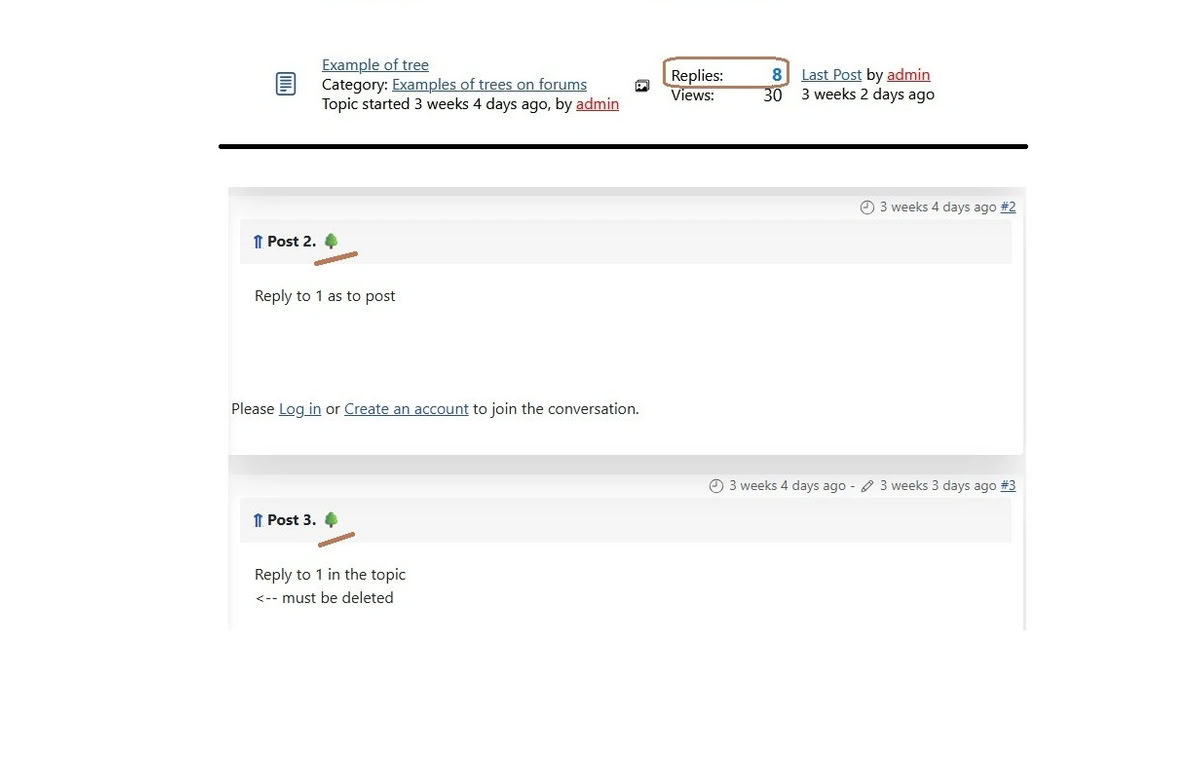
1. Click the number of replies in the topic on the Recent Topics tab.<br>2. Click the 🌳 symbol in any post of the topic.<br>
Either action opens a modal window showing the structure of links between the topic posts, called the topic posts tree.
The window has a header - a fixed row containing the topic title and several buttons. The tree area scrolls if the whole tree does not fit inside the modal window.
Last edit: 3 months 2 weeks ago by admin.
Please Log in or Create an account to join the conversation.
3 months 2 weeks ago - 3 months 2 weeks ago #27
by admin
⇑ A simple tree
A simple tree
Each post is represented by a row that shows at least the post subject. If one post is a reply to another post, there is a link between them, usually called "child post - parent post".
The row of each child post is shifted to the right relative to the row of the parent post, creating the tree effect.
The tree always has one row shown in bold. It corresponds to the latest post added to the topic. This is not necessarily the lowest row in the tree (as in our example).
One of the rows may also be highlighted with a different background (on this slide it is the first row). Such a row is "active" - the meaning of this name will become clear later, but for simplicity you can think of the active row as the one that currently has the user's attention.
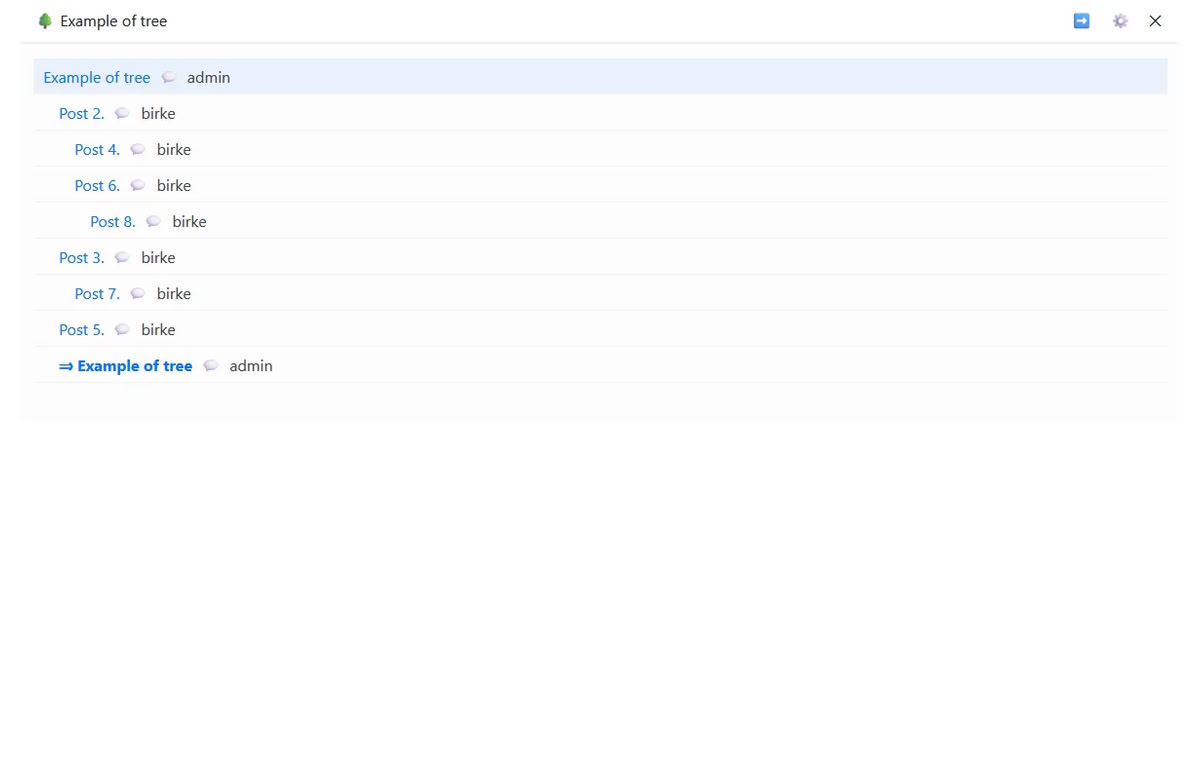
Each post is represented by a row that shows at least the post subject. If one post is a reply to another post, there is a link between them, usually called "child post - parent post".
The row of each child post is shifted to the right relative to the row of the parent post, creating the tree effect.
The tree always has one row shown in bold. It corresponds to the latest post added to the topic. This is not necessarily the lowest row in the tree (as in our example).
One of the rows may also be highlighted with a different background (on this slide it is the first row). Such a row is "active" - the meaning of this name will become clear later, but for simplicity you can think of the active row as the one that currently has the user's attention.
Last edit: 3 months 2 weeks ago by admin.
Please Log in or Create an account to join the conversation.
3 months 2 weeks ago - 2 months 2 weeks ago #28
by admin
⇑ Settings and grids
Settings and grids
The tree view can be controlled using the Settings window, which appears on the right side of the tree window when you click the ⚙ button
This slide also demonstrates the grid settings, which can be enabled to display the tree structure more clearly.
The ‘light’ grid shows line indents as dots.
The ‘heavy’ grid shows each level of the tree as a vertical line. Hovering over a vertical line makes it thicker and more prominent. The child posts of the post from which the vertical line originates are underlined with horizontal dashes.
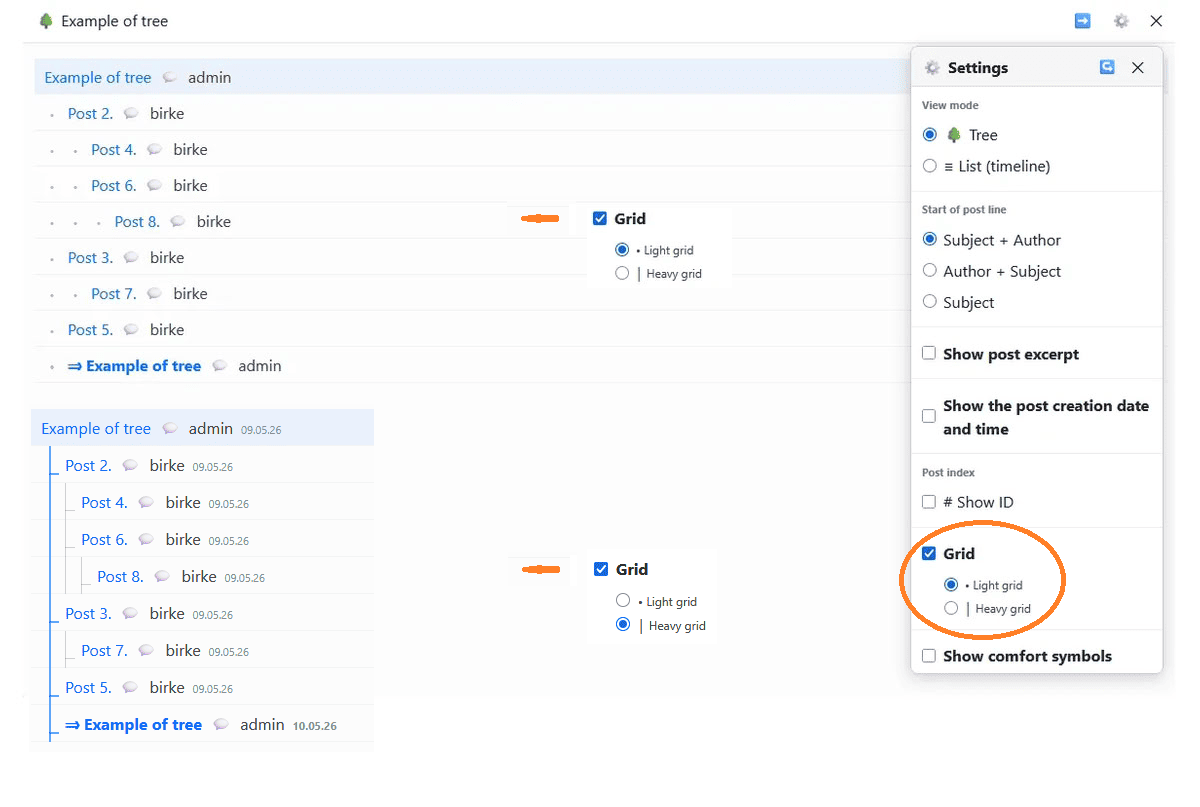
The tree view can be controlled using the Settings window, which appears on the right side of the tree window when you click the ⚙ button
This slide also demonstrates the grid settings, which can be enabled to display the tree structure more clearly.
The ‘light’ grid shows line indents as dots.
The ‘heavy’ grid shows each level of the tree as a vertical line. Hovering over a vertical line makes it thicker and more prominent. The child posts of the post from which the vertical line originates are underlined with horizontal dashes.
Last edit: 2 months 2 weeks ago by admin.
Please Log in or Create an account to join the conversation.
3 months 2 weeks ago - 3 months 2 weeks ago #29
by admin
⇑ Dragging the Settings window
Dragging the Settings window
If the Settings window covers part of the tree, click its header and, while holding the mouse button, drag the window to the desired place
Click here to watch the video
If the Settings window covers part of the tree, click its header and, while holding the mouse button, drag the window to the desired place
Click here to watch the video
Last edit: 3 months 2 weeks ago by admin.
Please Log in or Create an account to join the conversation.
3 months 2 weeks ago - 3 months 2 weeks ago #30
by admin
⇑ Tooltips and post text
Tooltips and post text
There is no need to rush back to the topic just to see the content of the posts. In every row, next to the post subject, there is a 💬 symbol. If you move the cursor over this symbol, the beginning of the post text will be shown.
In general, most buttons and symbols in TreeK have tooltips. To learn or remember what option a symbol provides, simply move the cursor over that symbol
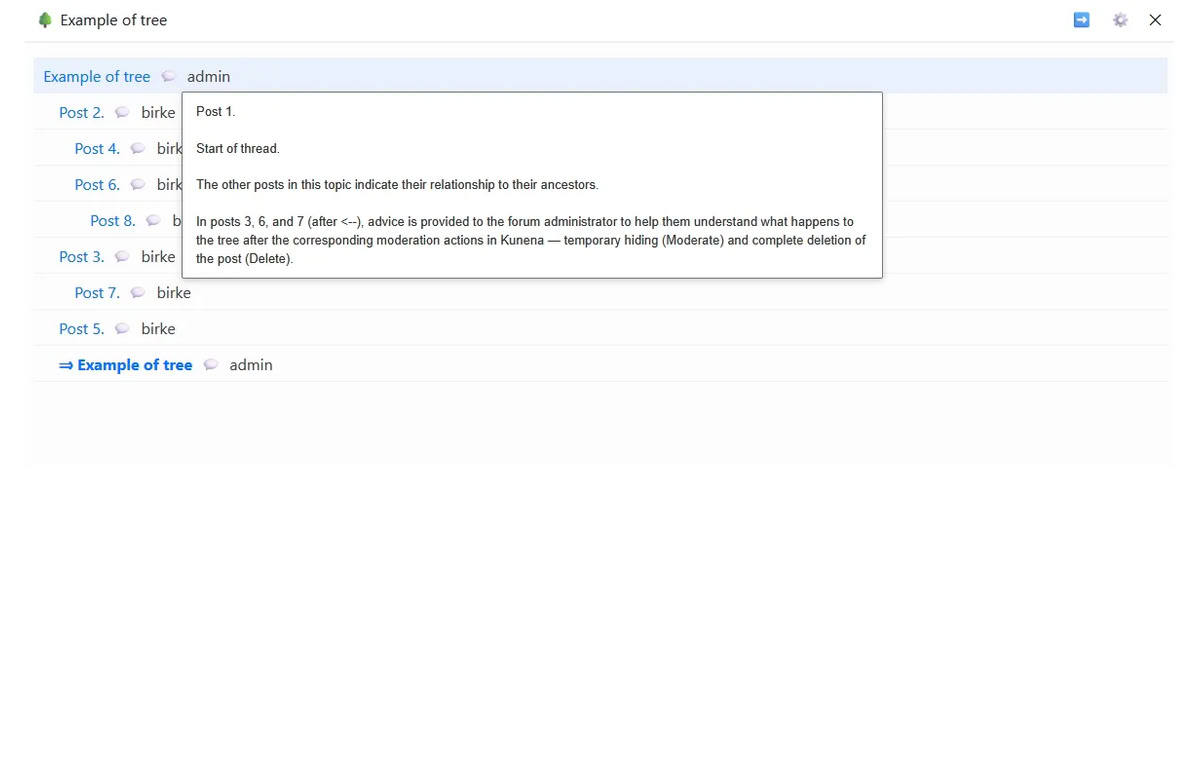
There is no need to rush back to the topic just to see the content of the posts. In every row, next to the post subject, there is a 💬 symbol. If you move the cursor over this symbol, the beginning of the post text will be shown.
In general, most buttons and symbols in TreeK have tooltips. To learn or remember what option a symbol provides, simply move the cursor over that symbol
Last edit: 3 months 2 weeks ago by admin.
Please Log in or Create an account to join the conversation.
3 months 2 weeks ago - 3 months 2 weeks ago #31
by admin
⇑ Start of post line
Start of post line
The Start of post line setting lets you choose what the post row in the tree starts with:
Subject + Author — the post subject is shown first, then the author.
Author + Subject — the author is shown first, then the post subject.
Subject — only the post subject is shown
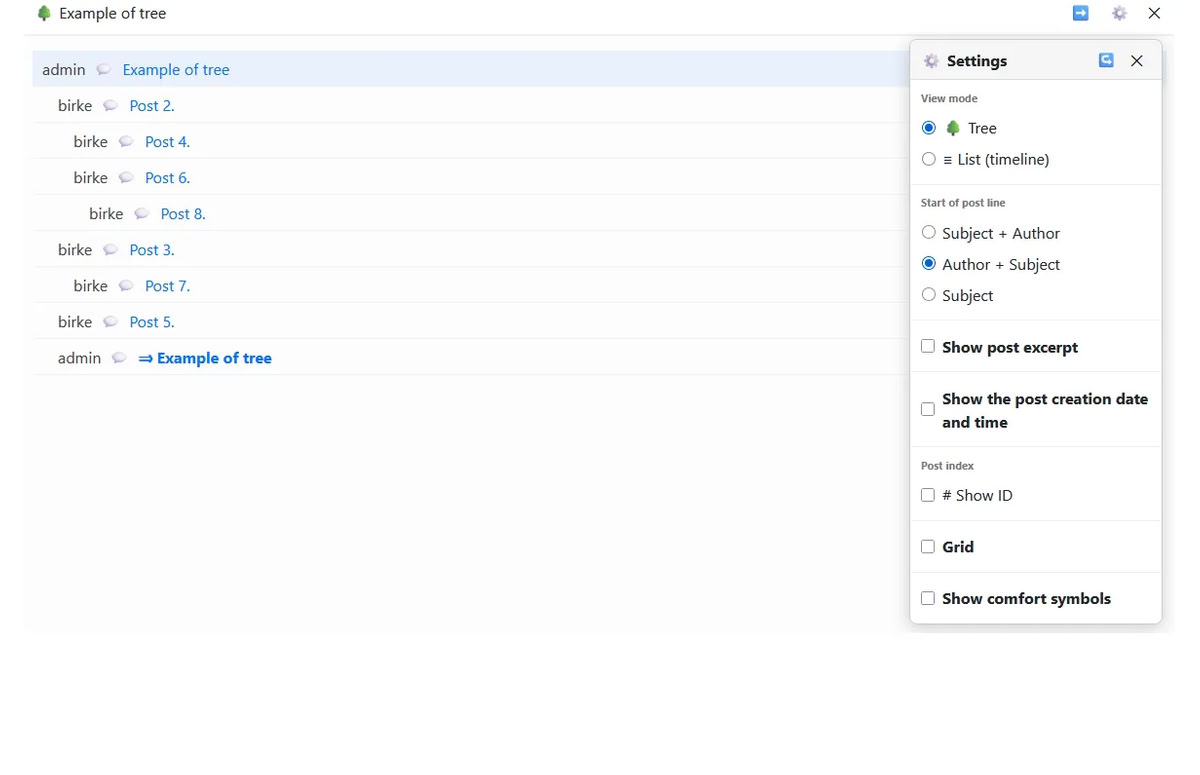
The Start of post line setting lets you choose what the post row in the tree starts with:
Subject + Author — the post subject is shown first, then the author.
Author + Subject — the author is shown first, then the post subject.
Subject — only the post subject is shown
Last edit: 3 months 2 weeks ago by admin.
Please Log in or Create an account to join the conversation.
3 months 2 weeks ago - 3 months 2 weeks ago #32
by admin
⇑ Date and time
Date and time
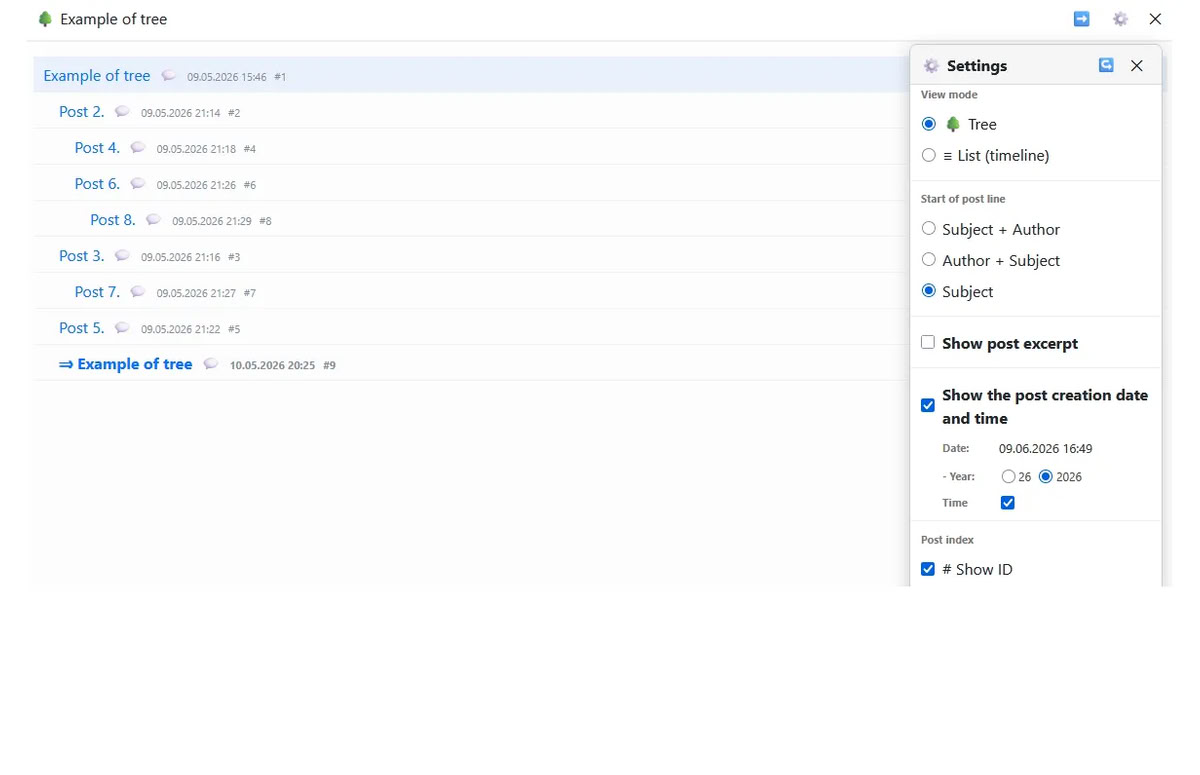
If you enable the "Show the post creation date and time" checkbox, date and time display options become available. You can choose a short or full year format and enable or disable the time display
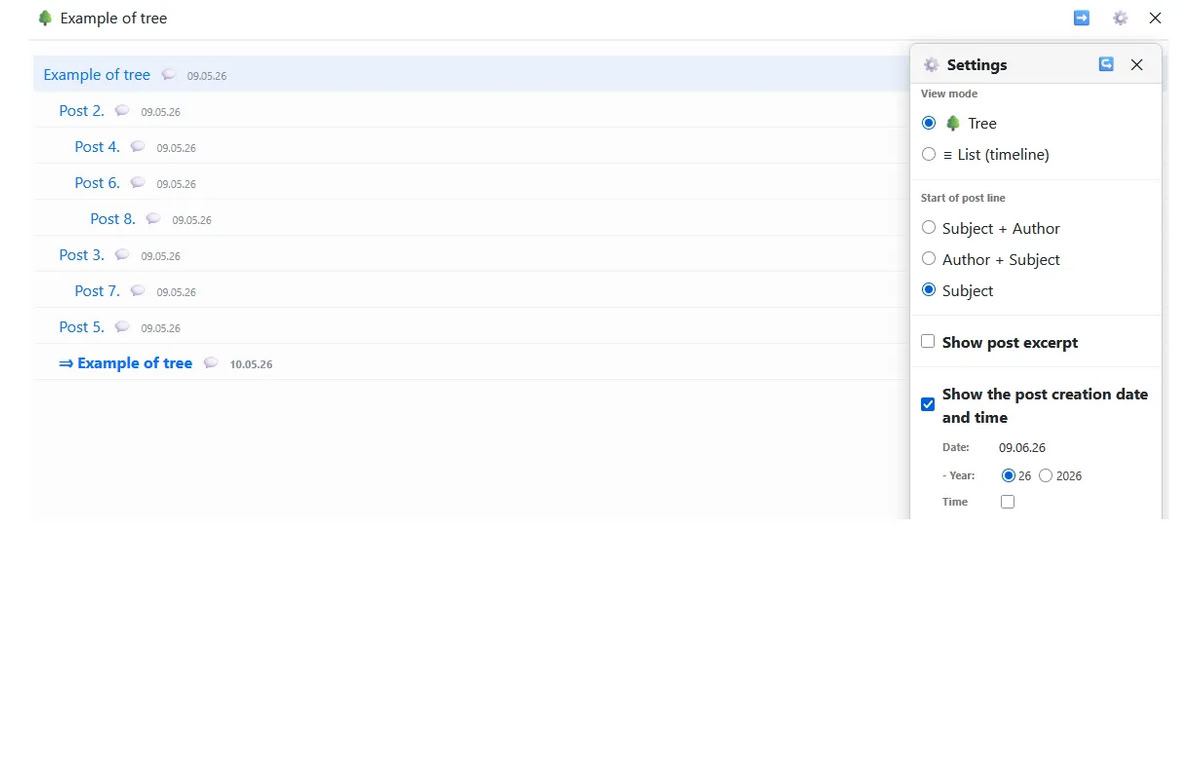
If you enable the "Show the post creation date and time" checkbox, date and time display options become available. You can choose a short or full year format and enable or disable the time display
Last edit: 3 months 2 weeks ago by admin.
Please Log in or Create an account to join the conversation.
3 months 2 weeks ago - 2 months 2 weeks ago #34
by admin
⇑ Show post beginning. "Text" excerpt
The Show post beginning setting makes it possible to study the topic fully through the tree and go to Kunena only if necessary to perform forum actions themselves: add or edit a post, and so on.
This setting has two options: text display and screenshot display..
Post excerpt - text displays a text fragment from the beginning of the post under the first post row, with a specified number of characters. If this number is large enough, the full post text will be shown.
The "Post excerpt - text" option has an additional setting: if you enable the "Frame around text" checkbox, the beginning of the post will be displayed inside a frame
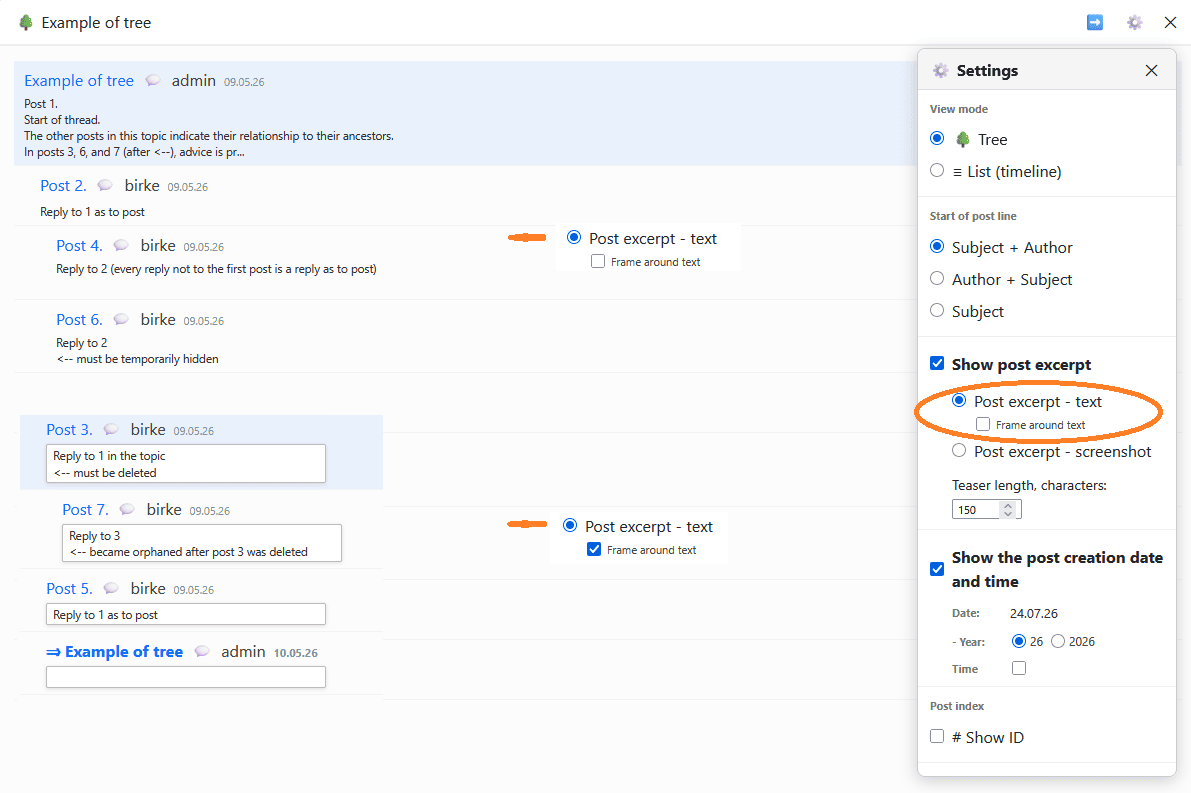
This setting has two options: text display and screenshot display..
Post excerpt - text displays a text fragment from the beginning of the post under the first post row, with a specified number of characters. If this number is large enough, the full post text will be shown.
The "Post excerpt - text" option has an additional setting: if you enable the "Frame around text" checkbox, the beginning of the post will be displayed inside a frame
Last edit: 2 months 2 weeks ago by admin.
Please Log in or Create an account to join the conversation.
Time to create page: 0.195 seconds