

- Posts: 32
- Thank you received: 0
TreekView. Changes in the forum user interface
3 months 2 days ago - 3 months 1 day ago #23
by admin
TreekView. Changes in the forum user interface was created by admin
Together with TreeK, which provides the ability to work with the topic posts tree, a slightly modified user interface is used compared with Kunena. In the developer's opinion, it can make forum work a little faster or more convenient. This part of TreeK has its own name: TreekView.
1. The topic subject is now protected: it is set once when the first post is created and cannot be changed in the forum. If the topic author needs to change the topic title, they must contact the site administrator.
2. The post subject is written by the post author, which makes it possible to reflect the meaning of the post in the subject.
3. The subject of each post, except the first post of the topic, begins with an up arrow (⇑). This is a link to the parent post. Clicking ⇑ moves the forum page to the post being replied to.
4. The reply iform has been slightly changed. In particular, the field name Thema has been replaced with Subject, because this field should describe the idea of the reply.
The reply form title has the format "Reply [to the author of the parent post] to post: [subject of the parent post]". This makes it clear whose post, and exactly which post, the user is replying to.
5. Instead of words that require language localization, TreekView uses a simple, understandable, and quickly learned system of arrow symbols listed below. For example, the ⇒ symbol is used as a site-language-independent equivalent of the phrase "Reply to post". These symbols can be visible in reply forms (Reply and Quick Reply) and in post titles.
Most symbols are buttons, meaning that clicking them performs an action.
6. Suffixes
When replying to a message, special text related to the subject of the parent post can be added to the reply subject.
In TreekView, this special text is called a suffix. Suffixes help automatically preserve the connection between the reply subject and the parent post subject, and make the topic easier to read because they show which post was replied to.
The user can remove the suffix for the current reply or disable suffixes for all their replies.
The site administrator can disable the use of suffixes entirely, although this is not recommended.
Formally, the arrow symbols and their relation to suffixes are described as follows.
Symbols in the reply form:
The "⇒" symbol in the subject of the post being created marks the beginning of the proposed suffix.
Buttons next to the word "Subject":
"⇏" - suffixes are enabled; the button offers to remove the suffix in this post.
"⇍" - the current suffix has been removed; the button offers to disable suffixes in all replies during the current session.
"⇒" - suffixes are disabled during the current session; the button offers to restore the use of suffixes. Clicking this button immediately restores the suffix for the reply being created. (Do not confuse the "⇒" button next to the word "Subject" with the "⇒" symbol that marks the beginning of the suffix.)
To repeat this less formally: the suffix can be removed by clicking the ⇏ button to the right of the word Subject. The ⇏ button then changes to ⇍; clicking ⇍ disables the addition of suffixes for the whole session. Clicking ⇍ restores the suffix option.
Symbols in the post subject:
The "⇑" button in the post subject provides navigation to the parent post on its page. When clicked, the page with the parent post at the top is shown.
The "⇒" symbol in the post subject is part of the subject, that is, a regular character. For example, it can be removed by editing the subject. It marks the beginning of the suffix that was used.
If suffixes are disabled, the subject field is free and the user must enter their own post subject there.
As described above, if suffixes are enabled when a reply is created, information about the parent post subject is automatically added to the subject field in the form "⇒ Parent subject".
At this point, the user can add new text to the subject to clarify the meaning of the post, although removing the suffix from the subject is still possible.
If the user does not add any new text to the subject, the suffix becomes the subject of the created post.
New text is entered in the Subject field to the left of the suffix. The cursor is positioned automatically when the subject line is entered, and it cannot be placed inside the suffix.
If new text is entered in the Subject field and the suffix is not removed completely, the suffix becomes part of the post subject together with the new subject text.
The suffix in the Subject field cannot be changed by editing. However, if the new post subject becomes so long that the combined length of the new text and the suffix exceeds the subject length allowed by Kunena, the end of the suffix is gradually pushed out of the line. If the user decides to shorten their text, for example by deleting the end of their text with Backspace, the pushed-out end of the suffix returns accordingly. If the suffix is partially pushed out, it is included in the post subject in shortened form.
If the parent's Subject itself has the form "⇒ Reply 2", the child's suffix will be "⇒ ⇒ Reply 2", with two ⇒ ⇒ arrows. These two arrows remain in suffixes regardless of which generation in a chain of posts with suffix-only subjects the given post belongs to.
7. Attachments
In post creation and editing forms (screenshots), there is an Attachments block. Although it is used relatively rarely, when an attachment really needs to be inserted into or removed from a message, users still have to spend time scrolling past this block every time.
In TreekView, the Attachments block is collapsed by default. Instead of the full block, the existing word Attachments is shown, followed in parentheses by the number of attachments if there are any, and then by the block expansion symbol: a black filled triangle ▼. This triangle has a tooltip: "Open attachments block". Clicking ▼ opens the Attachments block, and the user sees what is currently shown in Kunena.
8. The Action menu in a post
The developer considered the drop-down Action "menu" at the bottom of a post to be another factor that slows work down.
TreekView restores a view that once existed in Kunena, where each option - Reply, Quote, and Edit - has its own button.
9. Some other small interface details have also been changed. For example, the reply form title has been reduced from <h1> to <h5>. ввод
1. The topic subject is now protected: it is set once when the first post is created and cannot be changed in the forum. If the topic author needs to change the topic title, they must contact the site administrator.
2. The post subject is written by the post author, which makes it possible to reflect the meaning of the post in the subject.
3. The subject of each post, except the first post of the topic, begins with an up arrow (⇑). This is a link to the parent post. Clicking ⇑ moves the forum page to the post being replied to.
4. The reply iform has been slightly changed. In particular, the field name Thema has been replaced with Subject, because this field should describe the idea of the reply.
The reply form title has the format "Reply [to the author of the parent post] to post: [subject of the parent post]". This makes it clear whose post, and exactly which post, the user is replying to.
5. Instead of words that require language localization, TreekView uses a simple, understandable, and quickly learned system of arrow symbols listed below. For example, the ⇒ symbol is used as a site-language-independent equivalent of the phrase "Reply to post". These symbols can be visible in reply forms (Reply and Quick Reply) and in post titles.
Most symbols are buttons, meaning that clicking them performs an action.
6. Suffixes
When replying to a message, special text related to the subject of the parent post can be added to the reply subject.
In TreekView, this special text is called a suffix. Suffixes help automatically preserve the connection between the reply subject and the parent post subject, and make the topic easier to read because they show which post was replied to.
The user can remove the suffix for the current reply or disable suffixes for all their replies.
The site administrator can disable the use of suffixes entirely, although this is not recommended.
Formally, the arrow symbols and their relation to suffixes are described as follows.
Symbols in the reply form:
The "⇒" symbol in the subject of the post being created marks the beginning of the proposed suffix.
Buttons next to the word "Subject":
"⇏" - suffixes are enabled; the button offers to remove the suffix in this post.
"⇍" - the current suffix has been removed; the button offers to disable suffixes in all replies during the current session.
"⇒" - suffixes are disabled during the current session; the button offers to restore the use of suffixes. Clicking this button immediately restores the suffix for the reply being created. (Do not confuse the "⇒" button next to the word "Subject" with the "⇒" symbol that marks the beginning of the suffix.)
To repeat this less formally: the suffix can be removed by clicking the ⇏ button to the right of the word Subject. The ⇏ button then changes to ⇍; clicking ⇍ disables the addition of suffixes for the whole session. Clicking ⇍ restores the suffix option.
Symbols in the post subject:
The "⇑" button in the post subject provides navigation to the parent post on its page. When clicked, the page with the parent post at the top is shown.
The "⇒" symbol in the post subject is part of the subject, that is, a regular character. For example, it can be removed by editing the subject. It marks the beginning of the suffix that was used.
If suffixes are disabled, the subject field is free and the user must enter their own post subject there.
As described above, if suffixes are enabled when a reply is created, information about the parent post subject is automatically added to the subject field in the form "⇒ Parent subject".
At this point, the user can add new text to the subject to clarify the meaning of the post, although removing the suffix from the subject is still possible.
If the user does not add any new text to the subject, the suffix becomes the subject of the created post.
New text is entered in the Subject field to the left of the suffix. The cursor is positioned automatically when the subject line is entered, and it cannot be placed inside the suffix.
If new text is entered in the Subject field and the suffix is not removed completely, the suffix becomes part of the post subject together with the new subject text.
The suffix in the Subject field cannot be changed by editing. However, if the new post subject becomes so long that the combined length of the new text and the suffix exceeds the subject length allowed by Kunena, the end of the suffix is gradually pushed out of the line. If the user decides to shorten their text, for example by deleting the end of their text with Backspace, the pushed-out end of the suffix returns accordingly. If the suffix is partially pushed out, it is included in the post subject in shortened form.
If the parent's Subject itself has the form "⇒ Reply 2", the child's suffix will be "⇒ ⇒ Reply 2", with two ⇒ ⇒ arrows. These two arrows remain in suffixes regardless of which generation in a chain of posts with suffix-only subjects the given post belongs to.
7. Attachments
In post creation and editing forms (screenshots), there is an Attachments block. Although it is used relatively rarely, when an attachment really needs to be inserted into or removed from a message, users still have to spend time scrolling past this block every time.
In TreekView, the Attachments block is collapsed by default. Instead of the full block, the existing word Attachments is shown, followed in parentheses by the number of attachments if there are any, and then by the block expansion symbol: a black filled triangle ▼. This triangle has a tooltip: "Open attachments block". Clicking ▼ opens the Attachments block, and the user sees what is currently shown in Kunena.
8. The Action menu in a post
The developer considered the drop-down Action "menu" at the bottom of a post to be another factor that slows work down.
TreekView restores a view that once existed in Kunena, where each option - Reply, Quote, and Edit - has its own button.
9. Some other small interface details have also been changed. For example, the reply form title has been reduced from <h1> to <h5>. ввод
Last edit: 3 months 1 day ago by admin.
Please Log in or Create an account to join the conversation.
2 months 1 week ago - 2 months 1 week ago #48
by admin
⇑ Changes to the user interface in TreeK 2.0.
With the split of TreeK into two editions, the changes to the forum's user interface have largely retained their core functionality, though their accessibility architecture has been modified.
First, all of them have become part of TreeK Pro. The exception is the "Parent post arrow ⇑", which is also used in TreeK Free.
Second, the use of these UI elements is now controlled via settings.
Specifically, a "Forum View" checkbox section has been added to the bottom of the settings window, allowing users to toggle the following interface options (corresponding items from the previous post are listed in parentheses):
- Parent post arrow ⇑ (3)
- Comfort form header (4)
- Suffixes (6)
- Collapsed attachments (7)
- 3 action buttons ( 8 ).
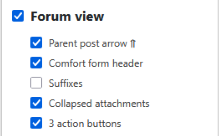
The default settings for any user are: ⇑ enabled; the others disabled.
In other words, to see collapsed attachments and the three action buttons — Reply, Quote, Edit — instead of the "Action" drop-down menu, the last two settings must be enabled.
The TreeK (site) administrator can set "global" "Forum View" settings that apply to all users by default, unless individual users choose to customize these settings to their own preferences.
Please note that user-defined Forum View settings take precedence over administrator settings.
The developer recommends that administrators configure the global settings as shown in the image.
In particular, enabling the "Comfort form header" setting—which clears the subject in the post input form—encourages users to provide meaningful subjects that reflect the essence of their posts.
First, all of them have become part of TreeK Pro. The exception is the "Parent post arrow ⇑", which is also used in TreeK Free.
Second, the use of these UI elements is now controlled via settings.
Specifically, a "Forum View" checkbox section has been added to the bottom of the settings window, allowing users to toggle the following interface options (corresponding items from the previous post are listed in parentheses):
- Parent post arrow ⇑ (3)
- Comfort form header (4)
- Suffixes (6)
- Collapsed attachments (7)
- 3 action buttons ( 8 ).
The default settings for any user are: ⇑ enabled; the others disabled.
In other words, to see collapsed attachments and the three action buttons — Reply, Quote, Edit — instead of the "Action" drop-down menu, the last two settings must be enabled.
The TreeK (site) administrator can set "global" "Forum View" settings that apply to all users by default, unless individual users choose to customize these settings to their own preferences.
Please note that user-defined Forum View settings take precedence over administrator settings.
The developer recommends that administrators configure the global settings as shown in the image.
In particular, enabling the "Comfort form header" setting—which clears the subject in the post input form—encourages users to provide meaningful subjects that reflect the essence of their posts.
Last edit: 2 months 1 week ago by admin.
Please Log in or Create an account to join the conversation.
Time to create page: 0.272 seconds