

- Posts: 32
- Thank you received: 0
Treek. Brief illustrated description of all features
3 months 2 weeks ago - 3 months 2 weeks ago #35
by admin
⇑ Beginning of the post. "Screenshot" excerpt
Beginning of the post. "Screenshot" excerpt
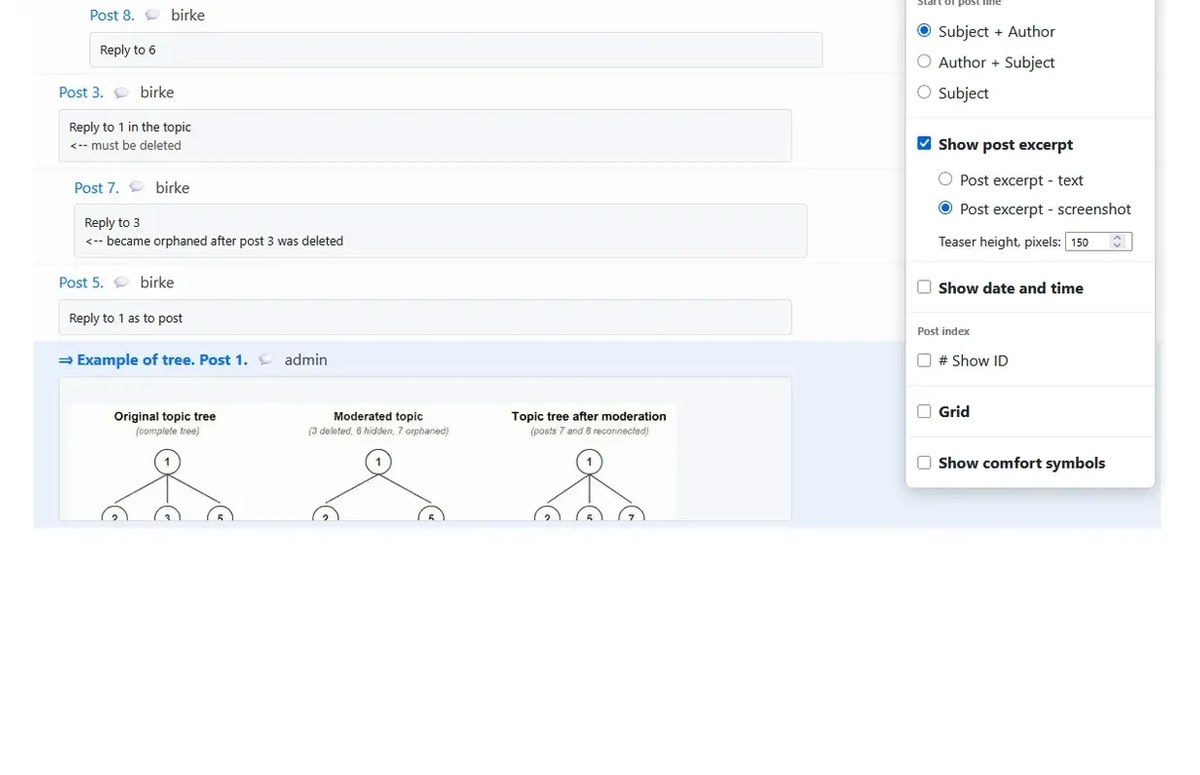
The Post excerpt - screenshot option of the Show post excerpt setting shows a fragment from the beginning of the post under the first post row as a screenshot with a specified height in pixels. If this number is large enough, the whole post will be shown.
The appearance of the lower post row (with an image) demonstrates the essential difference between the two excerpt options. In the screenshot excerpt, images, text formatting, colors, and other elements of the real Kunena post view are preserved.
Note that <b>with the Post excerpt setting, the site gets a full-fledged forum with indented structure!</b> In addition to the tree structure we have been talking about all along
The Post excerpt - screenshot option of the Show post excerpt setting shows a fragment from the beginning of the post under the first post row as a screenshot with a specified height in pixels. If this number is large enough, the whole post will be shown.
The appearance of the lower post row (with an image) demonstrates the essential difference between the two excerpt options. In the screenshot excerpt, images, text formatting, colors, and other elements of the real Kunena post view are preserved.
Note that <b>with the Post excerpt setting, the site gets a full-fledged forum with indented structure!</b> In addition to the tree structure we have been talking about all along
Last edit: 3 months 2 weeks ago by admin.
Please Log in or Create an account to join the conversation.
3 months 2 weeks ago - 3 months 2 weeks ago #36
by admin
⇑ Reaction time when settings change
Reaction time when settings change
How quickly does the tree view change when the settings are changed?
Quickly. What does quickly mean? Instantly. The slide provides video evidence
Click here to watch the video
How quickly does the tree view change when the settings are changed?
Quickly. What does quickly mean? Instantly. The slide provides video evidence
Click here to watch the video
Last edit: 3 months 2 weeks ago by admin.
Please Log in or Create an account to join the conversation.
3 months 2 weeks ago - 3 months 2 weeks ago #37
by admin
⇑ View mode
View mode
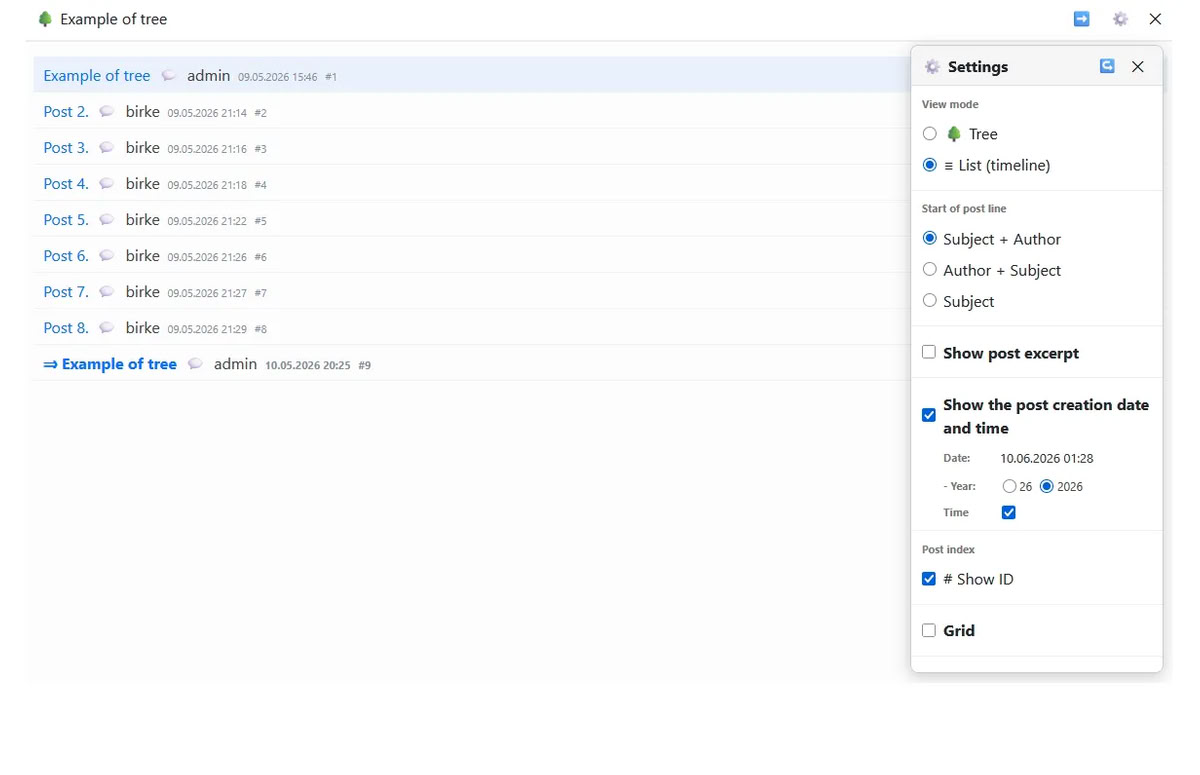
The main topic viewing mode is "Tree". Posts are displayed with their links taken into account. Replies are shown as child elements of the parent post. This mode helps you see the structure of the discussion.
In addition to the main mode, there is another one - "List (timeline)". Post rows are displayed sequentially, by creation time, matching the order of posts in Kunena. This mode is useful for studying certain aspects of a topic.
The main topic viewing mode is "Tree". Posts are displayed with their links taken into account. Replies are shown as child elements of the parent post. This mode helps you see the structure of the discussion.
In addition to the main mode, there is another one - "List (timeline)". Post rows are displayed sequentially, by creation time, matching the order of posts in Kunena. This mode is useful for studying certain aspects of a topic.
Last edit: 3 months 2 weeks ago by admin.
Please Log in or Create an account to join the conversation.
3 months 2 weeks ago - 3 months 2 weeks ago #38
by admin
⇑ Comfort symbols. Navigation
Comfort symbols. Navigation
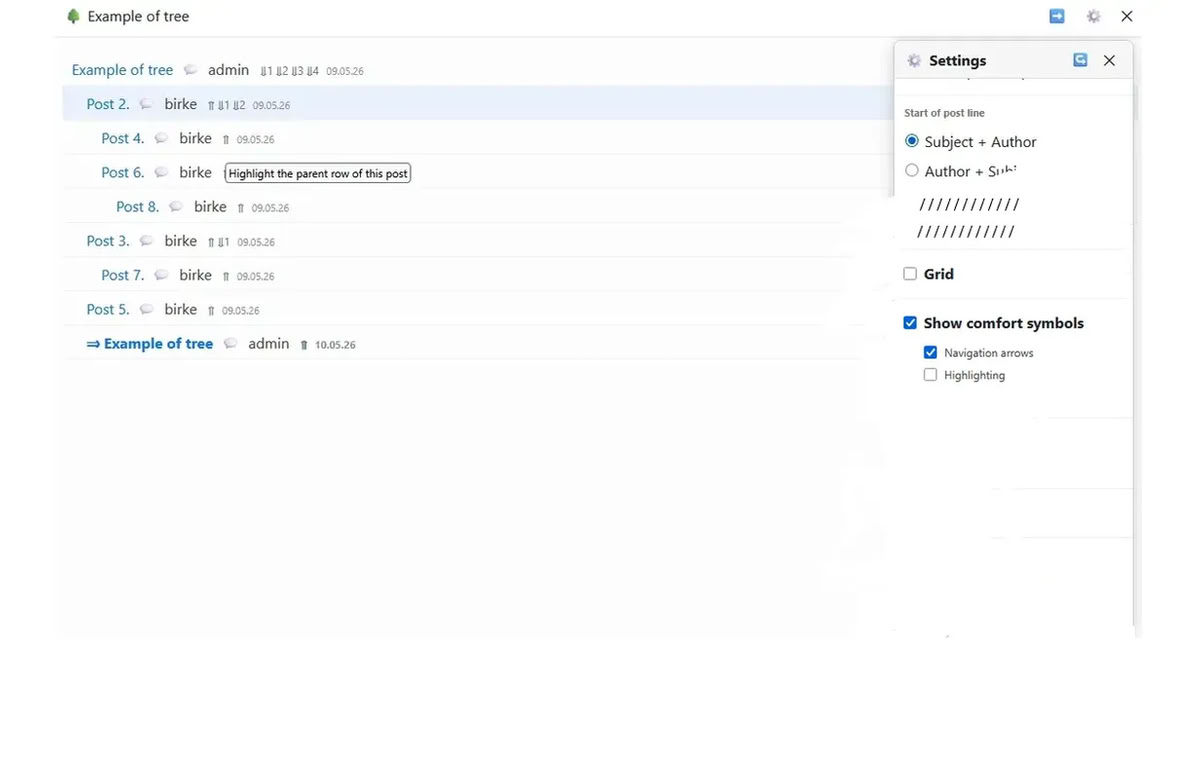
Additional symbols can be enabled in tree rows (they are called "comfort symbols") to help you navigate the tree more quickly.<br>
Comfort symbols work through highlighting - changing the background of posts of interest.
When the "Show comfort symbols" checkbox is enabled, two additional independent checkboxes are shown.
The "Navigation arrows" checkbox adds or removes symbols in post rows for conditional navigation along the tree links.
The ⇑ symbol makes the parent post active.
If a post is a parent, symbols for activating its children are shown in the row. The ⇓ symbol makes the row of the (only) child active. If the post of interest has several children, the corresponding child posts are activated by the symbols ⇓1, ⇓2, and so on. This is especially convenient when some children are far away from the parent row
Additional symbols can be enabled in tree rows (they are called "comfort symbols") to help you navigate the tree more quickly.<br>
Comfort symbols work through highlighting - changing the background of posts of interest.
When the "Show comfort symbols" checkbox is enabled, two additional independent checkboxes are shown.
The "Navigation arrows" checkbox adds or removes symbols in post rows for conditional navigation along the tree links.
The ⇑ symbol makes the parent post active.
If a post is a parent, symbols for activating its children are shown in the row. The ⇓ symbol makes the row of the (only) child active. If the post of interest has several children, the corresponding child posts are activated by the symbols ⇓1, ⇓2, and so on. This is especially convenient when some children are far away from the parent row
Last edit: 3 months 2 weeks ago by admin.
Please Log in or Create an account to join the conversation.
3 months 2 weeks ago - 3 months 2 weeks ago #39
by admin
⇑ Comfort symbols. Highlighting
Comfort symbols. Highlighting
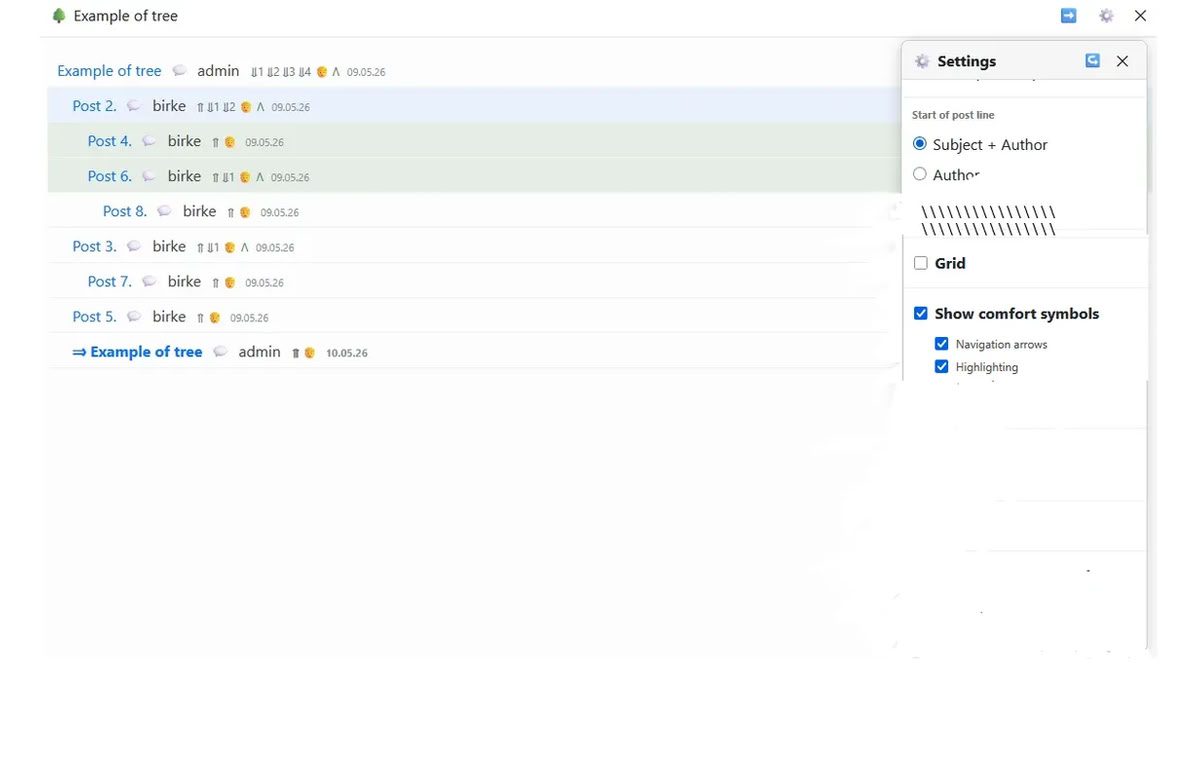
Highlighting symbols are used to highlight related posts.
The 🧑 symbol highlights (with a gray background) all posts by the author of the selected post.
If a post is a parent, the Λ symbol is shown in the row. Clicking it highlights the row of that parent and all its child posts with a gray background
Highlighting symbols are used to highlight related posts.
The 🧑 symbol highlights (with a gray background) all posts by the author of the selected post.
If a post is a parent, the Λ symbol is shown in the row. Clicking it highlights the row of that parent and all its child posts with a gray background
Last edit: 3 months 2 weeks ago by admin.
Please Log in or Create an account to join the conversation.
3 months 2 weeks ago - 3 months 2 weeks ago #40
by admin
⇑ Saving and restoring settings
Saving and restoring settings
Tree settings are active during the user session.
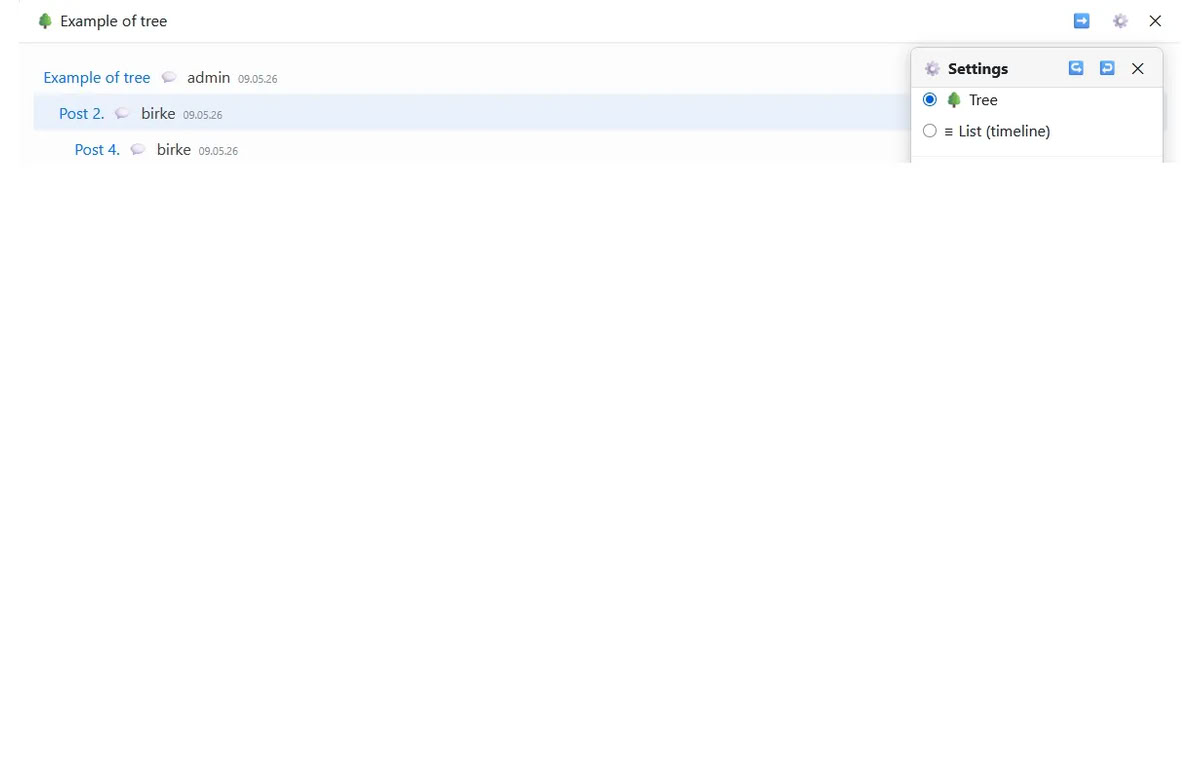
However, for registered users, TreeK allows individual tree display settings to be saved and later restored in another session and even for other topics. This is done using the Save settings ↪ and Restore settings ↩ buttons in the header of the Settings window.
The Restore settings ↩ button is visible only if the user has saved tree settings at least once
Tree settings are active during the user session.
However, for registered users, TreeK allows individual tree display settings to be saved and later restored in another session and even for other topics. This is done using the Save settings ↪ and Restore settings ↩ buttons in the header of the Settings window.
The Restore settings ↩ button is visible only if the user has saved tree settings at least once
Last edit: 3 months 2 weeks ago by admin.
Please Log in or Create an account to join the conversation.
3 months 2 weeks ago - 3 months 2 weeks ago #41
by admin
⇑ Export tree
Export tree
TreeK can copy the topic tree to the clipboard. This is useful when you need to transfer the discussion structure into a message, document, note, and so on.
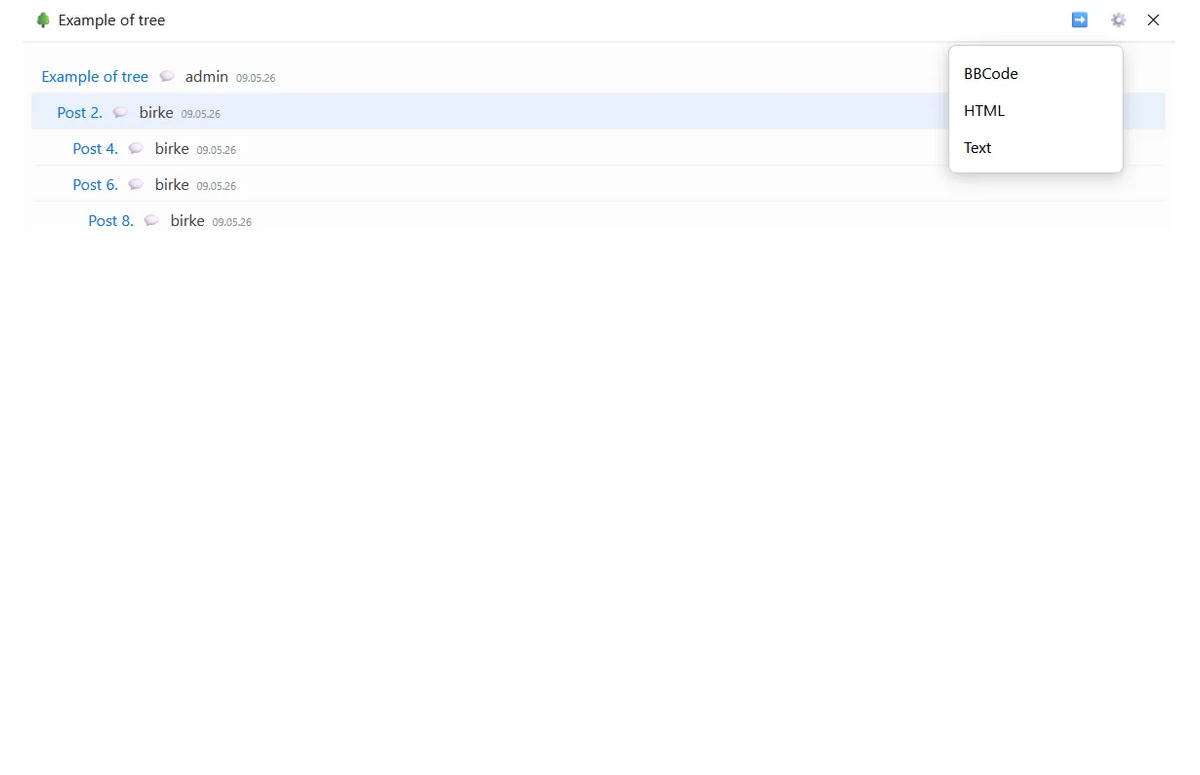
Three export formats are available. They are offered when you click the ➡️ symbol in the tree window header:
BBCode — suitable for insertion into objects that understand BBCode, in particular into Kunena posts (in the Source window).
HTML — suitable for insertion into an HTML editor or document, in particular into Joomla articles (in the JCE - Code window).
Subjects in BBCode and HTML code contain links to the posts of the exported tree.
Text — a plain text option that can be inserted into any text field, including a Kunena post, a Joomla article, or a text file.
The current tree view is exported, but only the elements present according to the settings are included - subject, author, time, index. For example, subject and author, or only subject. Comfort symbols and other service symbols, excerpts, and so on are not exported.
Tree rows in the exported text are shifted to imitate a tree
TreeK can copy the topic tree to the clipboard. This is useful when you need to transfer the discussion structure into a message, document, note, and so on.
Three export formats are available. They are offered when you click the ➡️ symbol in the tree window header:
BBCode — suitable for insertion into objects that understand BBCode, in particular into Kunena posts (in the Source window).
HTML — suitable for insertion into an HTML editor or document, in particular into Joomla articles (in the JCE - Code window).
Subjects in BBCode and HTML code contain links to the posts of the exported tree.
Text — a plain text option that can be inserted into any text field, including a Kunena post, a Joomla article, or a text file.
The current tree view is exported, but only the elements present according to the settings are included - subject, author, time, index. For example, subject and author, or only subject. Comfort symbols and other service symbols, excerpts, and so on are not exported.
Tree rows in the exported text are shifted to imitate a tree
Last edit: 3 months 2 weeks ago by admin.
Please Log in or Create an account to join the conversation.
3 months 2 weeks ago - 3 months 2 weeks ago #42
by admin
⇑ Going from TreeK to Kunena
Going from TreeK to Kunena
You can close the TreeK modal window and thereby return to the Kunena topic in the usual way - by clicking the cross in the upper-right corner of the window.
However, a more functional method is recommended: click the subject of any post in the tree, for example a post that requires a reply or editing. This not only closes the modal window, but also takes you to the corresponding post in Kunena
Click here to watch the video
You can close the TreeK modal window and thereby return to the Kunena topic in the usual way - by clicking the cross in the upper-right corner of the window.
However, a more functional method is recommended: click the subject of any post in the tree, for example a post that requires a reply or editing. This not only closes the modal window, but also takes you to the corresponding post in Kunena
Click here to watch the video
Last edit: 3 months 2 weeks ago by admin.
Please Log in or Create an account to join the conversation.
3 months 2 weeks ago - 3 months 2 weeks ago #43
by admin
⇑ Topic monitoring. Notification about a post added to the topic
Topic monitoring. Notification about a post added to the topic
Many users can work with the same topic at the same time, especially shortly after the topic is created. Working with a topic means simply reading its posts, replying to existing posts or editing them, studying the tree, and so on.
A reader of a topic in Kunena learns that another user has added a post to the topic after refreshing the last page of the topic or through actions leading to that, by monitoring the number of replies in the topic, and so on.
Here is how TreeK handles this.
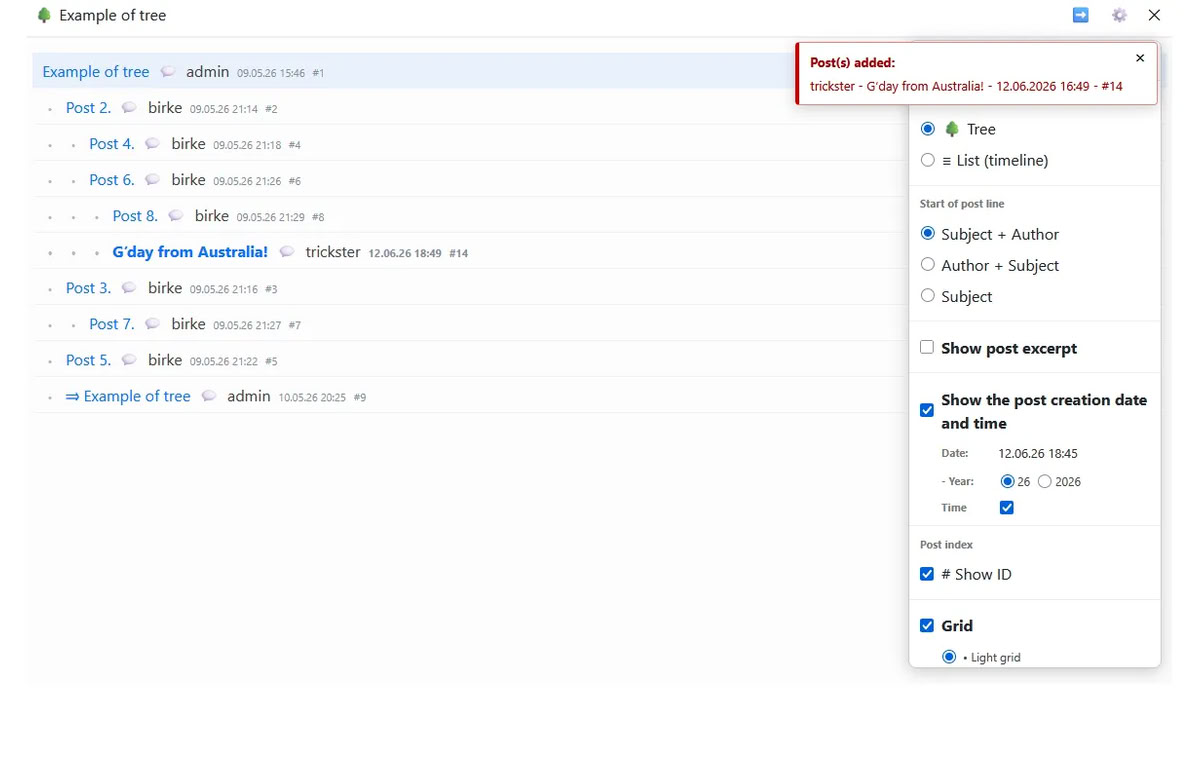
If a user is working with the tree and a post is added to the topic, a noticeable ("red") information message appears over the tree window no later than within a minute. It contains information in the format "Author - Subject - Time - Index". The message is shown for 15 seconds and then closes automatically, unless the visitor closes it earlier with the cross.
At the same time as the red message appears, the topic tree is updated. The tree window shows the same tree fragment and the same settings as before the message appeared, but the updated tree contains the row of the new post, highlighted in bold like any latest added post. Thus, the user immediately sees in which part of the tree the event occurred. If the tree is very large and the new post is not in the current fragment, the user can use the window scrollbar or the "View mode - List (timeline)" option, which will show the new post at the bottom of the post list
Many users can work with the same topic at the same time, especially shortly after the topic is created. Working with a topic means simply reading its posts, replying to existing posts or editing them, studying the tree, and so on.
A reader of a topic in Kunena learns that another user has added a post to the topic after refreshing the last page of the topic or through actions leading to that, by monitoring the number of replies in the topic, and so on.
Here is how TreeK handles this.
If a user is working with the tree and a post is added to the topic, a noticeable ("red") information message appears over the tree window no later than within a minute. It contains information in the format "Author - Subject - Time - Index". The message is shown for 15 seconds and then closes automatically, unless the visitor closes it earlier with the cross.
At the same time as the red message appears, the topic tree is updated. The tree window shows the same tree fragment and the same settings as before the message appeared, but the updated tree contains the row of the new post, highlighted in bold like any latest added post. Thus, the user immediately sees in which part of the tree the event occurred. If the tree is very large and the new post is not in the current fragment, the user can use the window scrollbar or the "View mode - List (timeline)" option, which will show the new post at the bottom of the post list
Last edit: 3 months 2 weeks ago by admin.
Please Log in or Create an account to join the conversation.
3 months 2 weeks ago - 3 months 2 weeks ago #44
by admin
⇑ Topic monitoring. Interaction between TreeK and Kunena
Topic monitoring. Interaction between TreeK and Kunena
Let us use this case to demonstrate the interaction between TreeK and Kunena.
Imagine that an administrator opens the tree of a topic they created at the moment another user adds a post, or immediately after that, and let us watch the video of what happens next.
Using the 💬 tooltip, admin sees that user trickster has interfered with the topic off-topic and (although Australia is a wonderful country) decides to immediately delete the post that has nothing to do with the topic. By clicking the subject of the new post, admin goes to Kunena, but unlike the situation with going to any post that existed when the initial tree was built, admin does not land directly on the new post, because the Kunena page has not yet been refreshed. Now the administrator refreshes the Kunena view and goes to the last page. Then the administrator deletes the unnecessary post. After that, admin returns to the tree
Click here to watch the video
Let us use this case to demonstrate the interaction between TreeK and Kunena.
Imagine that an administrator opens the tree of a topic they created at the moment another user adds a post, or immediately after that, and let us watch the video of what happens next.
Using the 💬 tooltip, admin sees that user trickster has interfered with the topic off-topic and (although Australia is a wonderful country) decides to immediately delete the post that has nothing to do with the topic. By clicking the subject of the new post, admin goes to Kunena, but unlike the situation with going to any post that existed when the initial tree was built, admin does not land directly on the new post, because the Kunena page has not yet been refreshed. Now the administrator refreshes the Kunena view and goes to the last page. Then the administrator deletes the unnecessary post. After that, admin returns to the tree
Click here to watch the video
Last edit: 3 months 2 weeks ago by admin.
Please Log in or Create an account to join the conversation.
Time to create page: 0.279 seconds