

- Posts: 30
- Thank you received: 0
TreeK: a brief description
1 month 2 weeks ago - 1 month 2 weeks ago #24
by admin
TreeK: a brief description was created by admin
The topic is presented in the window as a tree according to the following rules.
Each post is displayed as one row containing the post subject and, optionally, the author's name, creation time, and post index.
Additional useful information may be placed in and under the post row, for example symbols that help navigate the tree.
The latest post in the topic by creation time is shown in bold in the tree.
The way the tree is displayed is determined by the tree view settings. When the settings are changed, the tree view changes instantly. Registered users of the site can save individual tree display settings and, if desired, restore them in another session and even for other topics.
Since the "level" of each post is known (the distance from the root of the tree, a term explained in the theoretical part), this level is graphically expressed by the length of the indent from the left edge of the window. Literally, the indent of the post row from the left edge equals the "indent size" multiplied by the post level. There is also a setting that adds a grid to the window to show the tree structure more clearly.
The 💬 symbol, when hovered over, shows the beginning of the post text as a tooltip. All other TreeK buttons and symbols also have explanatory tooltips.
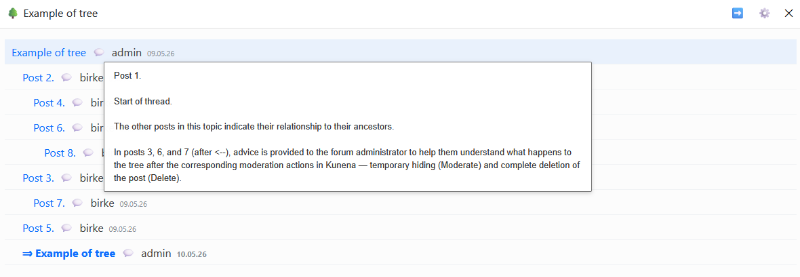
You can choose what is shown at the beginning of the post row in the tree: the post subject followed by the author, the author followed by the subject, or only the subject.
The display of the date and time, as well as the post index, can be enabled or disabled.
TreeK has important options for showing post excerpts. The "text excerpt" setting displays a text fragment from the beginning of the post under the first post row, with a specified number of characters. The "screenshot excerpt" setting shows a fragment from the beginning of the post under the first post row as a screenshot with a specified height in pixels.
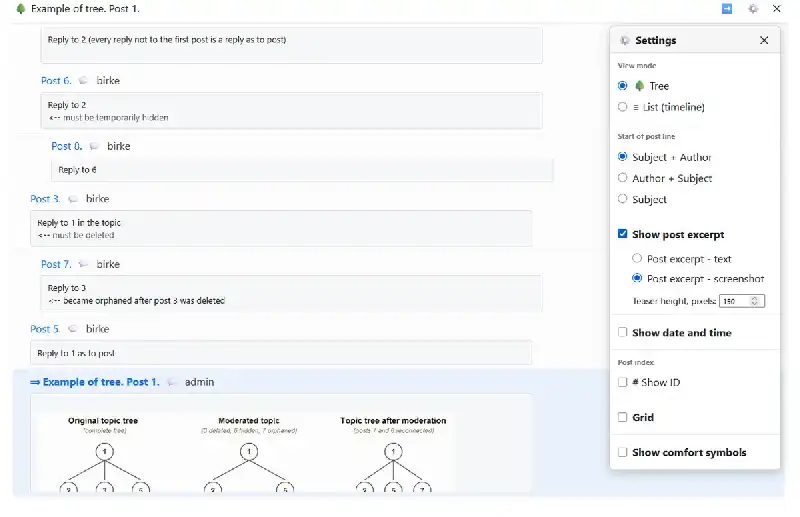
Additional symbols can be enabled in tree rows to help users navigate the tree more quickly.
TreeK can copy the topic tree to the clipboard in three export formats: BBCode, HTML (where subjects contain links to the posts of the exported tree), and Text.
Many users can work with the same topic at the same time, especially shortly after the topic is created. Working with a topic means simply reading its posts, replying to existing posts or editing them, studying the tree, and so on.
If a post is added to the topic while a user is working with the TreeK tree, an information message about this appears over the tree window no later than within one minute.
A detailed description of working with the post tree is given in the slideshow ,
Each post is displayed as one row containing the post subject and, optionally, the author's name, creation time, and post index.
Additional useful information may be placed in and under the post row, for example symbols that help navigate the tree.
The latest post in the topic by creation time is shown in bold in the tree.
The way the tree is displayed is determined by the tree view settings. When the settings are changed, the tree view changes instantly. Registered users of the site can save individual tree display settings and, if desired, restore them in another session and even for other topics.
Since the "level" of each post is known (the distance from the root of the tree, a term explained in the theoretical part), this level is graphically expressed by the length of the indent from the left edge of the window. Literally, the indent of the post row from the left edge equals the "indent size" multiplied by the post level. There is also a setting that adds a grid to the window to show the tree structure more clearly.
The 💬 symbol, when hovered over, shows the beginning of the post text as a tooltip. All other TreeK buttons and symbols also have explanatory tooltips.
You can choose what is shown at the beginning of the post row in the tree: the post subject followed by the author, the author followed by the subject, or only the subject.
The display of the date and time, as well as the post index, can be enabled or disabled.
TreeK has important options for showing post excerpts. The "text excerpt" setting displays a text fragment from the beginning of the post under the first post row, with a specified number of characters. The "screenshot excerpt" setting shows a fragment from the beginning of the post under the first post row as a screenshot with a specified height in pixels.
Additional symbols can be enabled in tree rows to help users navigate the tree more quickly.
TreeK can copy the topic tree to the clipboard in three export formats: BBCode, HTML (where subjects contain links to the posts of the exported tree), and Text.
Many users can work with the same topic at the same time, especially shortly after the topic is created. Working with a topic means simply reading its posts, replying to existing posts or editing them, studying the tree, and so on.
If a post is added to the topic while a user is working with the TreeK tree, an information message about this appears over the tree window no later than within one minute.
A detailed description of working with the post tree is given in the slideshow ,
Last edit: 1 month 2 weeks ago by admin.
Please Log in or Create an account to join the conversation.
Time to create page: 0.242 seconds